
Noise-canceling headphones are a game changer. They help you focus, listen to music, and tune out unwanted noise. But as with any tool, they can become problematic over time or through misuse. Troubleshooting doesn’t must be overwhelming.
Whether it’s weak ANC, Bluetooth connectivity problems, or sound distortion, you can fix most issues with a few simple steps. Here, we look at the most common headphone problems and some simple fixes so you can get your headphones back in working order.
What Users Commonly Experience
1. Unresponsive Controls: The buttons or touch controls aren’t working properly.
2. Weak ANC: The noise cancellation doesn’t work as well as expected.
3. Bluetooth Connectivity Issues: Problems with pairing or maintaining a stable connection.
4. Distorted Sound: Audio sounds unclear or muffled.
5. Ear Pressure or Discomfort: Discomfort or pressure after long use.
Why These Problems Occur
In most cases, these issues are easy to fix. They could be because of a battery drain or accidental settings changes. Overuse, especially with older models, can also cause these issues. Let’s explore some troubleshooting tips to get your headphones back to normal.
Troubleshooting Tips
Issue 1: Low Noise Cancellation Performance (Weak ANC)
Why It Happens
You may notice that the ANC (Active Noise Cancellation) is weak if your headphones are low on battery or if your ANC settings are wrong. Why is the noise cancellation not working? You may ask yourself, “This may mean the battery runs low or you didn’t set up the ANC correctly.”
Solutions
- Check Battery Level: ANC uses a lot of power. Fully charge your headphones.
- Revisit ANC Settings: Double-check that you enabled ANC and set it to the right level.
- Revisit ANC Settings: Double-check that ANC is enabled and set to the right level.
- Clean the Microphones: Dust or dirt can block the microphones that power ANC. Clean them gently with a soft cloth.
If you’re asking, “Why is my noise cancelling not working?” it might be because of dirty microphones or low power—two common culprits.
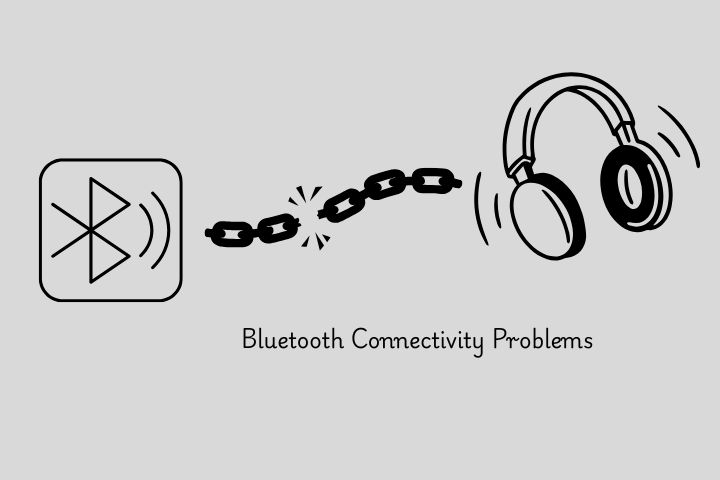
Issue 2: Bluetooth Connectivity Problems
Why It Happens
You may run into Bluetooth problems because of interference or outdated firmware. There could also be an issue with the device you are pairing the headphones with.
Solutions
- Turn Bluetooth Off and On: This often solves connection problems.
- Forget and Repair: Go to your device’s Bluetooth settings, forget the headphones, and then re-pair them.
- Remove Obstructions: Clear away any physical obstacles between the Bluetooth device and your headphones.
- Update Firmware: Make sure your headphones are running the latest firmware to fix connectivity issues.
Issue 3: Distorted Sound
Why It Happens
Distorted sound can happen for a few simple reasons. Your headphones may not be sitting correctly on your head. The cable may be loose. You may also change your audio settings by mistake.
When the connection is weak or the headphones do not fit properly, the sound can become unclear, muffled, or distorted.
Solutions
- Ensure a proper fit: Make sure your headphones are positioned comfortably. In over-ear models, a too-tight or too-loose fit can distort the sound.
- Check Audio Settings: Ensure your audio settings are correct and reset the equalizer for clear sound.
- Inspect cables and connectors: For wired headphones, check for signs of wear or damage on the cables and connectors.
- Try another device: Try your headphones on another device to see if the problem is with the first device.
Issue 4: Pressure in Ears or Ear Pain
Why It Happens
If the headband is too tight or the ear cups don’t fit well, over-ear headphones can cause pressure on your ears over time.
Solutions
- Adjust the headband: To relieve pressure, adjust the headband.
- Go for Lighter Models: If the pressure is unbearable, go for lighter models or over-ear headphones with softer padding.
- Extra Padding: Some models include extra padding for comfort. If your headphones can take it, add some more padding to the headband and ear cups.
- Take Breaks: Give your ears a break every now and then by removing your headphones.
Issue 5: Unresponsive Controls
Why It Happens:
If you are facing issues with touch or physical controls on your headphones. It could be because of control sensors, outdated firmware, or a software glitch.
Solutions:
- Check for Obstructions: Make sure that the controls are not blocked by anything (dirt, moisture, etc.).
- Restart: Switch the headphones off and on to reset the control system.
- Reset Settings: If a software glitch is affecting the controls, perform a factory reset on your headphones.
- Firmware update: Check for updates and verify your headphones are running the latest software that might fix control issues.
Conclusion
You can often solve even the most annoying headphone problems with some simple troubleshooting. Whether it’s a battery problem, wrong settings, or a Bluetooth connection issue, these fixes will help.
But if none of these solutions work, it may be time to call in a professional repair.
When to Seek Professional Repair:
Continual Problems: If troubleshooting fails, the problem could be more serious.
Physical Damage: Should your headphones sustain physical damage, such as broken ear cups or a defective driver, you may need to have them professionally repaired or replaced.
Preventative Tips
- Stay Safe: Store your headphones in a protective case to prevent damage.
- Regular Maintenance: Clean your headphones regularly, especially the microphones and ear cups, to maintain ANC performance.
- Firmware Updates: Remember to check for updates to keep your headphones working smoothly.


0 Comments